
🫧 Overlays and Cartesian Upgrades 🗺
⚠️ Not Backward Compatible ⚠️
If you upgrade to this build, be aware that all systems should be upgraded to this build or greater. The overlays will appear as blank movie angles in previous builds and might cause other issues.
It has been a long time since we pushed out an Angles update. There are quite a few reasons for this, but the biggest reason is that we built a new way to display data in the movie collection. We created a new feature called an Overlay. An overlay is an object in the movie collection that displays timeline and/or clip data. It that behaves like a movie angle that can be can be resized and moved any where in a movie collection.
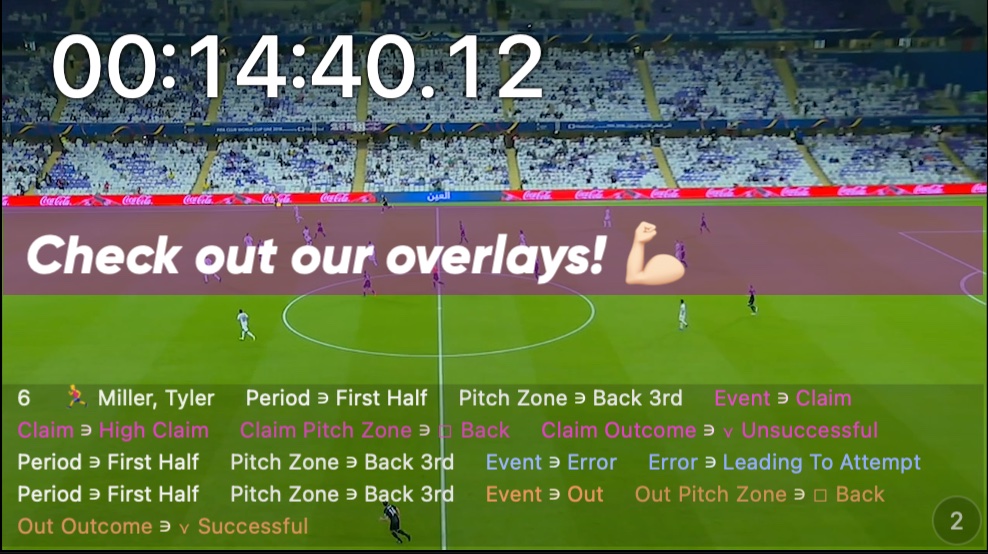
We are genuinely excited about this work as it is the first step to building our vision for the interactive video dashboard. The overlay is a cool object because it was built to support displaying visual data such as counts, pie charts or line plots. To start with, there are 4 types of overlays in this build:
- Movie Time - Displays movie time at the location of the playhead.
- Timer Clip - Displays timer clip time at the location of the playhead.
- Clip Details - Displays row name, clip number, qualifiers and attributes attached to a clip.
- Notes - Displays notes attached to a clip.
To add an overlay, right click anywhere in a movie collection, navigate to the Overlays menu option and select one of the Show options.
To move an overlay, hold down the Option key and click and drag in the middle of the overlay rectangle.
To resize an overlay, hold down the Option key and click and drag from the edges or corners of the overlay rectangle.
To change the opacity of the overlay, hold down the Command key and scroll up and down over the overlay rectangle.
To change the size of the text in a Clip Details or Note overlay, hover over the overlay scroll up and down over the overlay rectangle.
To remove an overlay, right click on the overlay rectangle and choose Remove. All overlays can be removed by choosing Remove All from the Overlays menu.
Overlays can be quickly toggled on or off by choosing View > Toggle Overlays from the main menu or pressing Option Command O.
The overlay pattern can be stored and applied to other movie collections by right clicking anywhere in a movie collection and choosing Store Overlay Pattern from the Overlays menu. This pattern can be applied to any movie collection by choosing Apply Stored Overlay Pattern from the Overlays menu. In the future, we will add the ability to have multiple patterns!
Shift Option Command O is a shortcut to apply the stored overlay.
When creating new movie collections, the stored pattern can automatically be applied by turning on the Apply Stored Pattern To New Movie Collections in the Overlays menu.
We cannot guarantee that the stored overlay pattern will work across all movie collections when varying numbers of angles are present or angle arrangements are different. We have a best fit algorithms, but it might not work out what you want automagically 🔮. Please let us know if there are situations where it is misbehaving.
Overlays can be a little bit fiddly to adjust, so there are 8 options in the Overlays menu to help adjust the layout of the overlay rectangles.
- Fit Left - Moves left edge to the left edge of the left-most movie angle.
- Fit Right - Moves right edge to the right edge of the right-most movie angle.
- Fit Horizontally - Stretches to the left edge of the left-most angle to the right edge of the right-most angle.
- Fit All Horizontally - Stretches all to the left edge of the left-most angle to the right edge of the right-most angle.
- Fit Above - Moves bottom edge to the top-most angle's top edge.
- Fit Top - Moves top edge to the top-most angle's top edge.
- Fit Bottom - Moves bottom edge to the bottom-most angle's bottom edge.
- Fit Below - Moves top edge to the bottom-most angle's bottom edge.
The details displayed in the Clip Details overlay can be toggled on or off in the Visuals menu in the main window toolbar. The options are:
- Show Qualifiers
- Show Categories
- Show Row Titles
- Show Topic Titles
- Show Attributes
- Show Clip Number
- Show Original Timeline Clip Number
Watch to learn more, screencast run time is 05:44 minutes.
⏱️ Timer Clip Overlay
Watch to learn more, screencast run time is 05:13 minutes.
The Timer Clip has been an option under the MarkUp button type since build 596, but only used by a few data experts to calculate match time for events by parsing Timeline JSON files. This button type creates an alternate timer that can be used to provide secondary times for the timeline and clips. For example, this type of button can be used to provide the official time of a football match; covering both halves.
If a timer clip exists, the Timer Clip overlay will display the timer clip time of the closest timer clip start time and a clip will automatically grab the timer clip time from the closest timer clip to the playhead, adding it to the clip in the timeline data.
The timer clip button type has an option called Timer Offset that can be set in the inspector, this value is minutes. This is helpful when working with multiple segments of time like a first and second half of a football match. You can set two separate timer clips with the same name and different offsets or setup two different buttons that create separate rows for first and second halves. The first timer offset starting at 0 and the second timer offset starting at 45.
In some sports, the game clock counts down from a specific time and can be stopped by the officials. So, there are two options to support this: Cumulative and Count Down. When cumulative is selected, gaps between when the timer clips starts and ends will be subtracted from the offset. When Count Down is selected, time will count down from the offset time. For example, in NBA basketball, you might have 4 quarter timer buttons where each is configured with an timer offset of 12, cumulative option selected and count down option selected. If you mark each time the game clock starts and stops, you will be able to calculate all clips and qualifiers timing according to the game time.
The way that time is displayed in the overlay can be altered by choosing one of the options under Overlays > Timer Clip Display. The options are:
- HH:MM:SS.00
- HH:MM:SS
- HH:MM
- MM:SS.00
- MM:SS
- MM
- SS
🗺 Cartesian Scaling and Tracing
Some of our finest work yet 💪🏻 Finally got back to working on the cartesian feature set. This build introduces two key cartesian features: Scales and Traces.
Up to this point, if you were collecting cartesian data, the x and y points were saved as a value from 0 to 1. This is ok, but you then have to translate these values into something more meaningful in the real world. So, we have created the Scale X and Scale Y feature that can be applied to the button allowing you to directly collect the coordinates based on whatever resolution you require.
Watch to learn more, screencast run time is 10:49 minutes.
This is kind of a tricky one to explain, so be sure to watch the screencast.
The cartesian button coordinate system (X,Y) has the origin (0,0) at the bottom left corner of the button, the top left corner is (0,1), top right corner is (1,1) and bottom right corner is (1,0). So, if we want the middle of the button the coordinates would be (0.5,0.5), pretty straight forward, but this is not really easy to wrap your head around when you start getting values like (0.8744,0.3345). This is where scaling comes in!
There are two sets of scales you can apply to the cartesian button: Scale X and Scale Y. By setting a scale you can set the minimum and maximum range values along each axis and the step increment between the two.
Let's consider a football pitch example: My local pitch is 105m long and 68m wide and I want to capture cartesian coordinates with a 1m x 1m grid resolution. In order to do this, I will set my X scale from 0 to 105 and my Y scale from 0 to 68, and each will step by 1. A step value of 1 for each scale will return only integers in the scale range, thus giving me a 1m x 1m grid on top of the button. Note that my button image is oriented with the goals on the right and left end of the button.
Another example might be a basketball half court where your button orientation has the hoop at the top of the button image. If you want to capture with a 1ft x 1ft grid resolution, the Scale X would be 0 to 50 and the Scale Y would be 0 to 47, each step value would be 1.
It was really difficult to use the cartesian feature prior to this build as you did not really know where you clicked, so we created a feature called Traces. Traces appear on top the cartesian button, showing you where you clicked on the button. They can appear with Arrows or Dots and Arrow or Dots with Lines. Arrows indicate the direction for which the trace was traveling, dots work well when direction is not important and the lines show connections between the cartesian values.
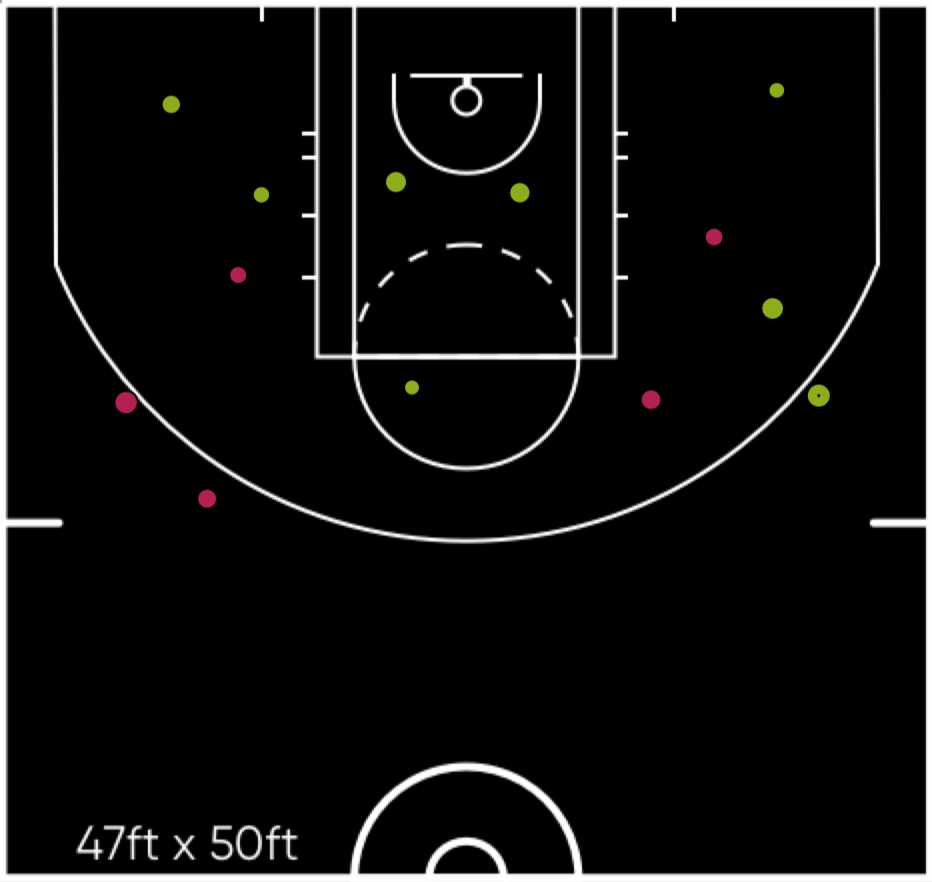
The length of the trace can be set from 0 to All. For example, if the trace value is set to 3 and you click on the fourth cartesian value, the first one will disappear, basically the tail is removed.
To assist the cleanup of the trace, two new button actions have been added: Clear Traces > Down and Clear Traces > Up. When these actions are linked to the cartesian button and the action is triggered, the trace will be cleared.
👨🚀 PRO TIPS
Hold down Command to use the last cartesian value again. This handy when multiple events occur on the same location.
Setting the X and Y range to 0 to 1 and the scale step value to 0 will set up the cartesian button to provide values as it did in previous builds, ranging in decimals from 0 to 1.
🎁 New Minor Features
Watch to learn more, screencast run time is 02:26 minutes.
‘Always Add Qualifiers In Qualifier Mode’ right click menu added to ‘MarkUp’ button. When this mode is active a new qualifier can be added to a clip even if the new qualifier is a duplicate.
Watch to learn more, screencast run time is 02:13 minutes.
To add a qualifier to multiple selected and filtered in clips in the qualifier mode, hold down the Control Command keys and click on the markup qualifier. If the qualifier already exists in any of the selected and filtered in clips, this pre-existing qualifier is removed from these clips. To force this qualifier to add to the clip in this situation, hold down the Option key in addition to the Control Command keys and then click on the markup qualifier button.
Remove Duplicate Qualifiers From Selected Clips added to the timeline right click menu. This is a great feature to assist in cleaning up data that has been imported from data providers or other software.
Show Notes On Full Screen Movie option added to the Visuals menu in main window toolbar. When this option is turned off the notes overlay will not be shown when presenting movies full screen.
Watch to learn more, screencast run time is 03:09 minutes.
Multiple angle arrangements can be stored and cycled through by double tapping the 0 key on the keyboard. To store an arrangement, right click on an angle in the movie collection and choose Arrangements > Store Arrangements from the pop-up menu. The arrangement will be stored in an invisible list.
In order for a stored arrangement to be applied, the angle numbers must match the angle numbers in the collection.
All stored arrangements can be deleted for a collection by selecting Arrangements > Delete Stored Arrangements.
Watch to learn more, screencast run time is 01:29 minutes.
Markup clip buttons with different categories create different rows in timelines.
🎼 Composer Improvements
Double click on topic row header to play the topic.
Added abilty to select and drag multiple topic rows up and down. The Command key can be held down to select multiple topics, then the selection can be dragged as a group. The Shift key can used to select a range of topics.
Copy and paste using Command C and Command V shortcuts added, so clips can be copied and pasted within a composer or to another one.
Pressing Command X will copy then delete the selected clips in the composer. They can be pasted in another topic or topic in another composer.
‘Move’ menu item added to composer right click menu. This option makes it easy to move a clip to another composer.
To copy and move a clip in a composer hold down Option C and drag the clip to another topic or another composer.
To delete selected rows or topics in an active timeline or composer, press Option Delete keys.
‘Delete Selected Topics’ menu item added to the right click in the composer under the remove menu item.
Composer play ’Stop After Every Clip’ and ‘Loop Each Clip’ modes added. These features can be turned on by right clicking on the play button in the composer toolbar. Pressing Tab key will jump to the next clip.
Update Filter menu in the composer toolbar, so it behaves just like the timeline.
🪟 Content Sidebar and Window Improvements
Previously we called Angles packages ‘Folders’, we have changed this name to 'Vault'. We were all getting confused with Finder folders and Angles folders.
Control Command N creates a new vault, sets the focus to that vault and opens the content sidebar.
Pressing Command Delete key prompts to move selected items in the content bar to the trash, similar to how Finder works.
Added 3 new super tab arrangements:
- 3 top and 3 bottom
- 1 left and 2 right
- 2 left and 1 right
Valid movie files with the extension ‘.mov’ or 'mp4' can be dropped onto a blank pane without having to first create a movie collection.
Legacy XML and Angles JSON timeline files can be dropped onto a blank pane without having to first create a timeline.
Right clicking in the Supertab title bar shows the following menus:
👨🚀 PRO TIP - Press Shift Command W to close active Supertab.
To join timelines in the order that they are selected in the content side bar, hold down the Command key and select the timelines in the content side bar.
Menu item ‘Invert Content Selection’ added to content side bar right click menu.
Double click in the Supertab title bar to select content sidebar items in the supertab.
Added menu option ’Show Rename Editor For New Views’ to the small tab bars. When this is disabled, the rename editor will not appear.
If the Command key is held down and an icon in the empty view is clicked, the tab renaming editor is not displayed.
Pressing Option Command K shows the dialog to clone the front window.
🕰️ Timeline Improvements
Improved timeline row selection and dragging.
While copying clips in the timeline using Option drag, the timeline will scroll up or down when the pointer is close to the top or the bottom of the timeline.
If a timeline is linked to a collection, a link icon is drawn beside the name of the linked timeline and collection in the small tab.
Menu item ‘Play Without Stopping Others’ added to the timeline play button. Turn on this feature by right clicking on the timeline play button. This feature can be helpful in some live workflows.
The timeline 'Split Clip At Playhead' feature updates the timeline row clip counter.
The timeline row colour is copied during archiving.
✏️ MarkUp Improvements
Clips created using auto up buttons are limited to the auto up duration.
Clips created using auto up markup buttons start at the markup button down time and end at the auto up duration, but can be truncated by the Tab key or ‘All Up’ button.
A timeline can be exclusively linked to a markup using quick drag linking.
Stars can be undone individually in timelines and composers.
🔩 Miscellaneous Improvements
Short cut keys for angle flicking extended from 6 to 9.
Additional angle arrangements have been added for movie collections with 5 and 6 angles.
Movie jump shortcuts set to > and < keys. This can changed in the 'Keyboard Controls.plist' along with the jump duration.
Archiving updated to better detect failures. When an archive failure is detected, the destination collection and timeline are restored to their state before the archive began. Archiving requires at least 1 GB of free space on the destination volume.
HLS menus re-organized, people found them a little confusing.
To set the HLS clump size, edit ‘/Users/Shared/Angles/Preferences/HLS/hls.plist’. The maximum and minimum MB values are 5 and 2000. Updating this value should only be done in specific workflows.
Added a http failed to load flag to each collection angle. If an angle http file fails to load after 120 seconds then that angle is flagged as having failed to load and no further attempts are made to load that http angle without user intervention. When a failure occurs, a failed to load image is displayed in the angle. Reloading can be restarted using the menu ‘HLS > Restart Failed HLS’.
Synergy import ignores In Point and Out Point in the export.csv files.
⚠️ Backward Compatibility Comments
Rich Text Format (RTF) data are now saved in the main timeline or composer data files with the key ‘note_text_storage_rtf__json_String’. The aim of this change is to simplify data management. Version 997.08 and later will be able to load the old RTF files, but older Angle versions may be not able to understand the new RTF data. Modifications were made to RTF data displayed in the inspector, pop-down text displays in the timeline and composer, text displays on collections, and merging clips.