
Build 438
It has been too long since our last release, but it is for good reason! This build introduces our initial clip notes feature implementation. We believe it is some of our best work to date. During the journey of developing this feature, we have refined the application in many many ways, most of all adding a lot of keyboard shortcuts that compliment Control J K L for piloting around the timeline without lifting your palms off the keyboard.
You will also see that we have added some new icons and have dropped the name vault and changed our wording to folder. Along with this name change, the default Home Folder is now is located in your Movies folder.
Please note that as of build 434, Angles will move "Home Vault" from your Documents to your Movies folder and rename it "Home Folder". The main reason for moving the default folder is that iCloud Drive can be set to backup your Desktop and Documents folders. When iCloud Drive is enable with the options for Desktop and Documents selected, we had a lot of users filling up their online storage with Angles movie data while using up a lot of bandwidth.
Clip Cursor is a small white dot that runs up and down the playhead cursor in the timeline, we call this the clip cursor. The clip cursor identifies the timeline row in which you are working. This is important to understand because many of the new keyboard shortcuts relate to this dot.
The new shortcuts:
| Shortcut | Description |
|---|---|
| Control R | Creates a new timeline row or composer topic. |
| Control I | Starts marking a new clip in the row where clip cursor is located unless the clip cursor is on top of an existing clip. |
| Control O | Ends clip marking started by Control I. |
| Shift Control J | Moves clip cursor up rows in the timeline. |
| Shift Control L | Moves clip cursor down rows in the timeline. |
| Control S | Selects the closest clip to the right of the clip cursor. |
| Shift Control S | Selects the closest clip to the left of the clip cursor. |
| Control D | Deselects selected clips. |
| Control N | Jumps to the closest clip to the right and starts note editing. |
| Shift Control N | Jumps to the closest clip to the left and starts note editing. |
| Tab | Moves text cursor to next note row in note editor. |
| Escape | Closes the clip note popup editor. |
| Command L | Toggles betweeb locking current set angle position or default angle position |
| Double Left Command | Quickly tapping twice shows and hides Files Sidebar. |
| Double Right Command | Quickly tapping twice shows and hides Inspector Sidebar. |
| Double Left Control | Quickly tapping twice toggles clip hover popup. * Previous builds this was Left Command! |
Clip Notes can be added to a clip in a timeline or composer using the Control N shortcut or by long clicking on a clip or in the Inspector. The text will appear in a note block overlay on top of the movie. The note block can be scaled by hovering over the block in the movie, then mouse scrolling up or down. The background opacity can be adjusted by holding down Command, hovering over the the block, then mouse scrolling up or down.
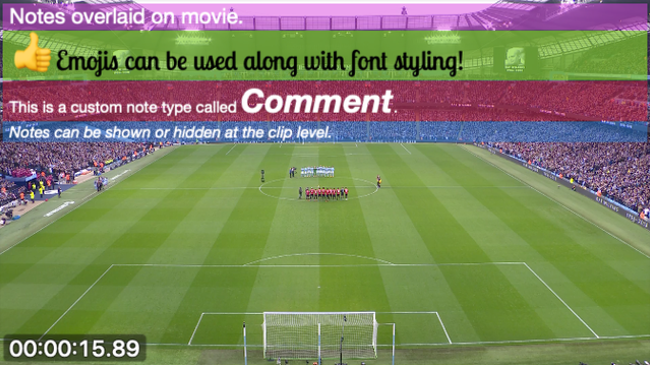
The text can be edited in 3 places: the clip popup, the Inspector and directly in the note overlay block in the movie.
Font type, size and styling and various other text features can be applied to the note text using the native macOS Fonts palette and related text editing shortcuts. The Fonts palette can be accessed in the Format menu or by pressing Command T. Emojis are supported as well, open the Character Viewer from the Formats menu item called Emojis or use the Control Command Space Bar shortcut.
Custom note types can be created and their background color can be set. To add a note type choose Add A New Note Type from the Notes menu in the Inspector.
Notes can be set to display or not in the movie by selecting Collection or Off in Display setting option for the note in the Inspector.
More polish around angle flicking behaviours when working with locked angle positions for clips in the timeline and composer.
In previous versions, clip insertion using Shift Control Click Drag in a timeline, would start the clip from the last point in which the playhead was stopped. This was annoying even though it could make the clip insertion more accurate. Now, Shift Control Click Drag inserts the clip right where the drag starts.
Bug Fixes:
- When copying a lot of selected clips from timeline to composer using Option Command B, the animation caused performance issues. The animation has been limited to showing only the first 10 clips being copied to the composer.
- Timelines were automagically linking to the wrong movie collections even when the hard link was set.
- Auto up time for clip buttons was being added in full, then starting the count down. Now, only the auto up time is added when the button is pushed down.
- When pressing down a lot of buttons with auto up set, all the buttons would go up at the same time.
- Exporting composer would hang forever if movie collection could not be found. A routine has been added to search for the movies, a spinner will appear and a message plus red stripes now indicates when the movie cannot be found.
- Shift Tab was jumping over the start of the current clip to the start of the previous clip, now the clip cursor jumps to the start of the current clip.
- Undo in composer was unsetting the topic exclusions in the composer. The topic exclusions no longer unset and are managed by the undo manager properly.