
🙏 No More 🦠 Release
This release goes out to all our football and rugby customers who have been working through the pandemic riddled season. Thanks to Sheffield Utd, Ajax, Aston Villa, Hoffenheim, Barça, CA Brive and FIFA for all the feedback and time spent with us to get our features right.
New Mark Up Button Palette and Shapes. We added 6 new button shapes based on ⬟⬢⬣. This allows you to create some pretty fun and creative MarkUps.
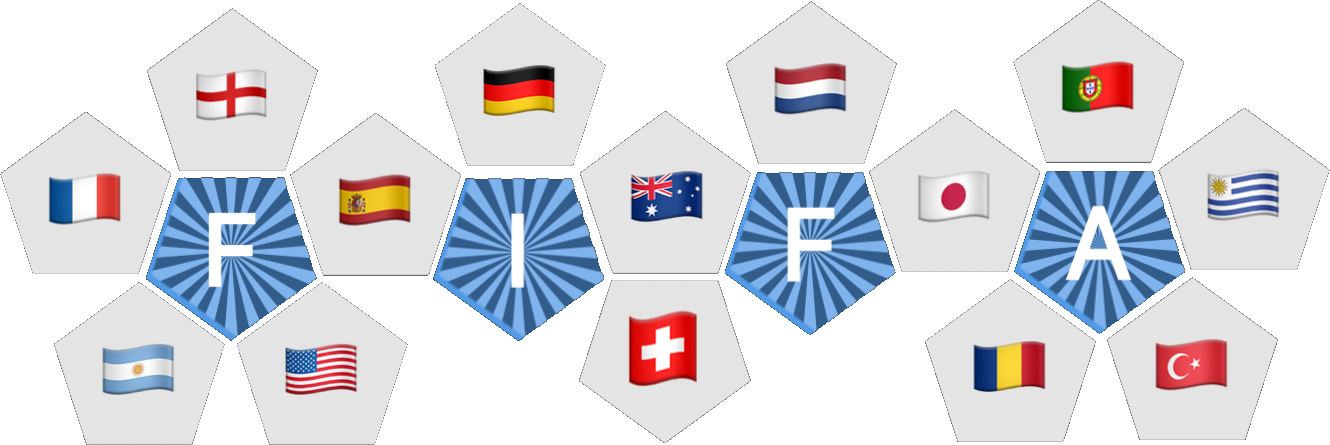
Button Color and Mark Color options added to MarkUp buttons. Button color is the color of the button as it appears in your MarkUp. Mark color is the color that will be marked in the timeline as the clip, qualifier or attribute color. By default, button and mark color are set to be the same. Unticking the Same option will allow you to set the button color and mark color separately. So, your button could be blue and mark red clips in the timeline.
New Color Button Actions added to MarkUps.
 Down > Button Color
 Up > Button Color
 Down > Mark Color
 Up > Mark Color
If the Same option is ticked for button and mark color (default), then using button color action will also set the mark color. The same is true if you are using a mark color action.
Cut Clips added to the Composer!
This feature found in the timeline has now been added to the composer, allowing you to quickly export clips using the variety of output options.
Composer topics are treated like timeline rows, you can quickly compile specific topics and dump the clips out using the cut clip options to separate or sequence angles. It supports the inclusion of picture clip and imported movies in the composer. So, try using this feature as the quickest way of exporting selected topics or clips as a single movie.
In order to assist in the process of creating content for telestration apps such as Piero, Coach Paint or Tactic, we have added an option in the Cut Clips feature called Prepare For Telestration. This option cuts the selected clips, so that the movies will be editable in these products.
We suggest configuring these settings for Cut Clips, then select each topic and run the export.
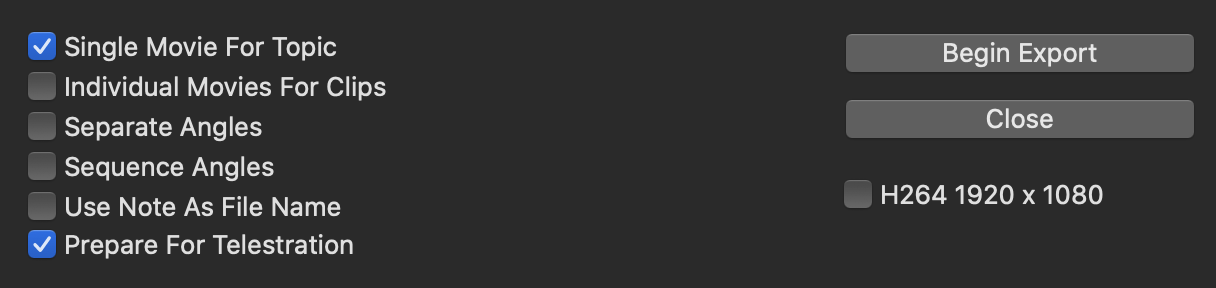
An option that will transcode each clip has been added as well. This option should be used if you run into troubles in the next step of your workflow outside of Angles.
NOTE: We cannot guarantee this will always work for your telestration app, we do not have licences for these products, so we are doing our best through the help of our users. Please provide feedback.
🏎 Sidecar Support! A MarkUp will now mark clips in the most recently selected visible timeline with a preference given to timelines that are playing/capturing. So, basically whatever timeline was last clicked on will receive the marks from the MarkUp as long as the timeline is visible.The killer aspect of this is that the MarkUp can be in a separate window! So, if your markup happens to be in a window on your iPad running Sidecar, you can use your Apple Pen or iPad keyboard to mark to the timeline in the other Angles window on your Mac!!! 💃🏼
File Synchronization added for all file types, so you can now have the same file open in multiple Super Tabs or tabs and all will stay in sync.
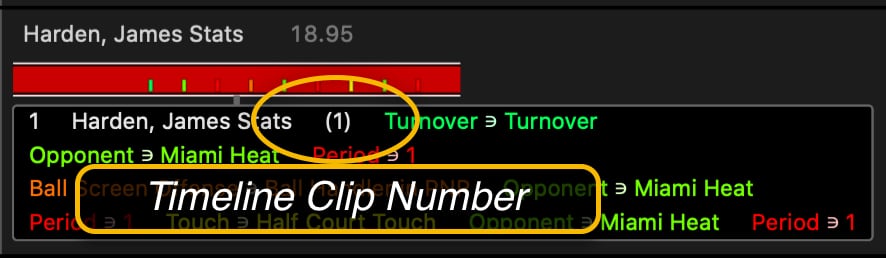
Timeline Clip Number now appears in the clip popup details of the composer. This is helpful when re-ordering clips in the composer.
Dual Screen Movie Playback When presenting movie collections to full screen, the source movie collection in the main window will synchronize its playback using up to 30fps rate. The reason for the potential frame rate reduction is to reduce load on the system, making it work on less powerful Macs.
Toggle Set Angle Positions for multiple selected clips using a focus clip. The focus clip is the clip where the clip cursor is located in either the timeline or composer. So, select a clip, be sure the clip cursor is in the clip, flick to the preferred angle, then select other clips that you want to use the same angle positions and press Command L. Pressing Command L again will toggle the clip's angle postions back to default.
Disable Qualifier Mode When Capturing option has been added to the MarkUp mode option menu. When this option is selected, clips can be selected for trimming or pasting and MarkUp buttons can be pushed down simultaneously. The MarkUp mode option menu is accessed by right clicking on the MarkUp mode button in the MarkUp toolbar. Appreciate Aston Villa for recommending this option!
Live Capture Marking can now mark clips against a movie collection being captured on a remote computer according to the remote live capture preview window. This feature is perfect for people marking live against what their eyes are seeing in real time. It, also, allows more accurate merging of timelines. Some of the procedures in this feature will likely require some refinement. So your feedback is appreciated.
Option Click Drag Button Copy added in MarkUp edit mode. Hold down Option, then click and drag to make a copy; works for all selected buttons and scrolls the body for placement. This little feature goes out to Hockey Australia will find it handy too! It is very Macish and we love it.
Files List Update, the files list will look for file changes on shared folders and refresh the list. This one goes out to CA Brive, thanks to Max for providing such good descriptions and pushing the software so hard.
Composer Update - Added support for copying picture and movie recource clips from composer to composer. This allows you to easier re-use content across multiple composers.
MarkUp Update - Using Control and click to right click on a button to rename it while in MarkUp mode will not push the button down causing it mark the timeline. Thanks to Ajax for catching this one.
Synergy Sports Editor Import updated to support Synergy Max editor edits.
- Synergy tags are now imported with a category of 'Synergy Tags'.
- Synergy strings are now imported with a category of 'Synergy Strings'.
- Synergy overlay text is imported as a note in the clip.
Atrributes now appear in the clip hover pop down menu for timelines and composers. This option is found under the Visuals menu in the main window toolbar: 'Show categories, qualifiers, attributes and row'.
SORTA BUG FIX: Option dragging clips while scrolling vertical rows of timelines or composer topics now works as expected. The reason for the "bug" is that we added Option scrolling to move the playhead in the timeline or composer, this was conflicting with scrolling the body of the timeline or composed while a clip was being copied or moved.
BUG FIXES:
- When default keyboard angle flicking shortcuts were disabled during MarkUp mode and a MarkUp was closed while in MarkUp mode, the keyboard shortcuts would be stuck using the alternative modifier key Option.
- Export Composer Clips, 720 by Topic was creating duplicate exported movies, one with sound and one without. It is now only exporting one.
- Copy option in right click button menu of Mark Up was dimmed if multiple buttons were selected.
- Timeline archiving would fail if destination timeline was not visible in the files list in the left sidebar.
- Zero length clips could be created in the timeline, leading to issues in the composer export. This is now impossible because in MarkUp mode clips with duration less than 0.04 seconds are not added to the timeline.
- In the composer, is was possible to trim a clip to zero length, thus losing ability to see it. The minimum clip length is now 0.04 seconds. A clip of this duration can be seen when composer is fully zoomed in.
- Single Angle Export with Notes, ignores clips with duration 0.04. This is to help with existing composers that were created before the above related fixes.