
The 🌈 Sort & 📹 Mark Release
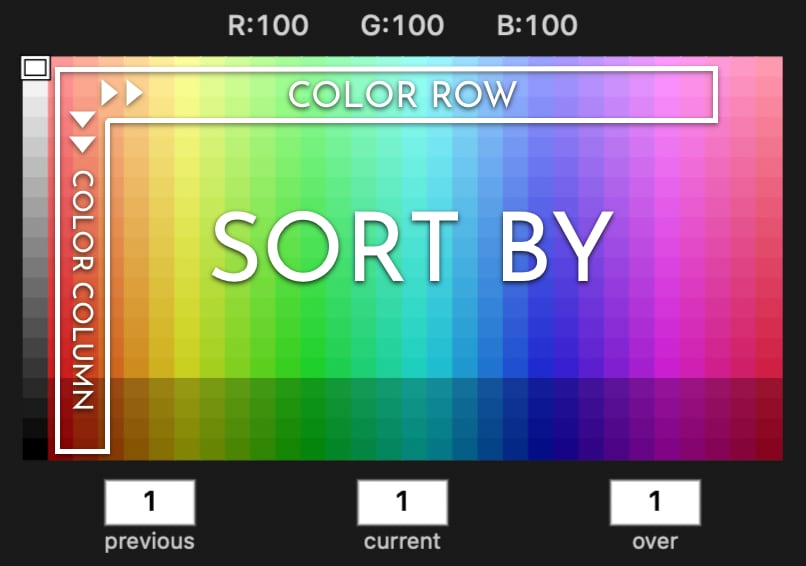
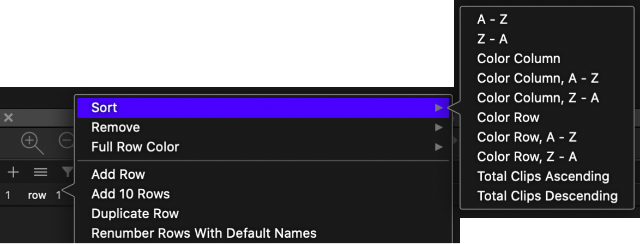
Color Row or Column Sorting options added to timeline sorting menu. We have re-structured the Timeline Sort menu and added new sorting options that will sort by the color palette grid row or column. To access the menu, right click on the timeline row header.
MarkUp Mode capture options added to MarkUp. While capturing, the new default behaviour is that clips being marked in the timeline will be inserted according to the live capture view. While in this mode, the playhead can be moved, clips be adjusted or sent to a composer, but all buttons that are pushed down in the markup will be inserted according to the live capture window.
The alternate mode is the former default mode, clips will be inserted according to the playhead location.
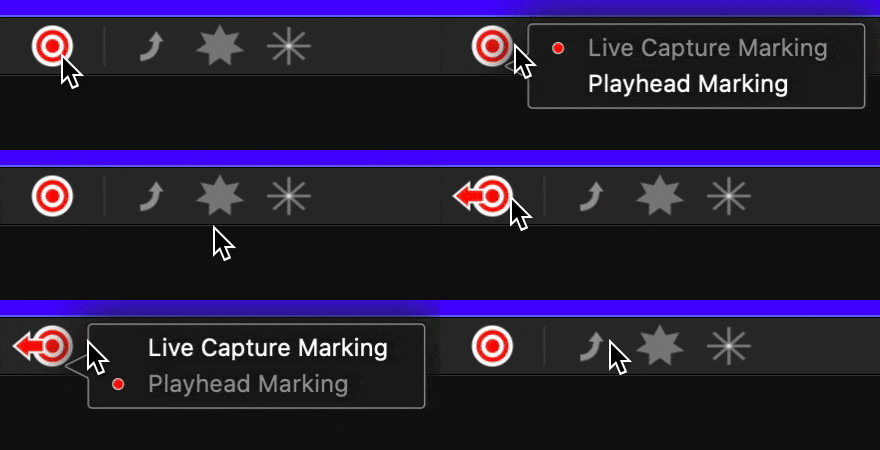
To access thes options, right click on the MarkUp button and choose your preference.
MarkUp button hotkeys will only activate the most recently used MarkUp if two or more MarkUp views are open in a window and in MarkUp mode.
We often forget how awesome Undo and Redo features can be. Thanks to New Mexico State for reminding us! We have a few data collection projects on the go at the moment and we figured enhancing Undo features would be very helpful there too. So, we added better undo and redo marking in the timeline in MarkUp mode.
Command Z will walk back timeline marks made while in MarkUp mode.
Shift Command Z will walk forward the marks if you use Undo.
Essentially, it works just like editing a text document.
MacOS Catalina recognizes the Hudl remote as a different type of keyboard than in previous operating systems. The remote must be configured as an ANSI type keyboard in the Keyboard Settings of System Preferences. So, connect the remote in the Bluetooth Settings and go to Keyboard Settings, then click the "Change Keyboard Type..." button. Follow the prompts and choose ANSI. Updating the name of the device in the Bluetooth Settings is recommended too.
Quicker File Linking add by holding down Shift Control Option, then clicking and dragging from the body of the timeline or movie collection, you quickly link files together. The convenience of this feature will make a lot more sense when we release the matrix!
Composer Picture Duration preference added to 'Clips - picture duration.plist' file located in /Users/Shared/Angles/Preferences. The default is 3 seconds. This effects the duration when split clip and insert picture clip is used.
   <key>default picture duration seconds</key>
<real>3</real>
Fade Unselected Clips added to the Visuals menu. When this option is turned on, clips that are not selected will be faded out, making the selected clips easier to see.
If the default fade factor is too faded, a preference file 'Clips - fade color.plist' is located at /Users/Shared/Angles/Preferences. It can be edited to adjust the amount of fade applied.
   <key>fade factor</key>
<real>0.25</real>
Customize Angle Flicking Shortcuts in a new preference file. The default keyboard shortcuts: 1,2,3, etc. can be customized by editing a file called 'Keyboard Angle Shortcuts.plist'. This file is located in /Users/Shared/Angles/Preferences.
By default the settings in this preference are turned off. At the top of this plist file is a key called 'TURN ON', it is set to false.
   <key>TURN ON</key>
<false/>
Change false to true. Then adjust the options for each angle as required.
Modifier keys can be turned on by setting the their respective values to true.
The keys are set using key codes, the reason for this is extra keys can be
configured like a number pad, these numbers have a different key code
even though they input the same thing. The Mac key codes can be found here:
Eastman Reference - Key Codes
There is an interesting key option at the bottom of this preference file, 'use in markup mode only'. When this is set to true, the custom keyboard shortcuts are only used while in MarkUp mode. This allows you to keep the default setup when not in MarkUp mode.
The preference file can be edited by TextEdit or other plain text editor. There is an app called PlistEdit Pro. It might be wise to download and use this editor.
We are a bit surprised we made it this long without someone requesting this feature. We can thank Ajax for this request as they have been using 2,3,4,5 as shortcuts for marking clips for many years in that other software and as they were marking, angles kept flicking back and forth! We don't want to mess with great muscle memory.
Holding down Option while scrolling a mouse wheel or using a two finger trackpad gesture in the body of the timeline will move the playhead left or right in the timeline.