
The New Norm 😷 Release
We are excited to see sport again 🥳 even without crowds. 🙌🏼 everyone for providing feedback while climbing back into the match day saddle. It means a lot to us to hear the good news and that our work through the pandemic is proving to be on point and helpful.
This release polishes off a bunch of minor and major features in the MarkUp area. The solid foundation that Angles has been built on makes doing these features a breeze. Keep the suggestions coming!
MarkUp Updates:
Up Note & Down Note options added to clip buttons. When
these options are selected, a floating clip note editor will pop up when
the button is pushed up or down. Each editor is bound to the specific clip, the
row and clip number appear in the title bar.

All the shortcuts work as they do in the other note editing features. To close the editor hit the red button in the title bar or press Control Return on the keyboard after inputting a note. Pressing Command W will also close the note editor, just be careful using this shortcut because it will close your Angles window too!
Alternate Button Names option added to None buttons. A none button with this option selected can store a list of names that can be selected to rename a button.
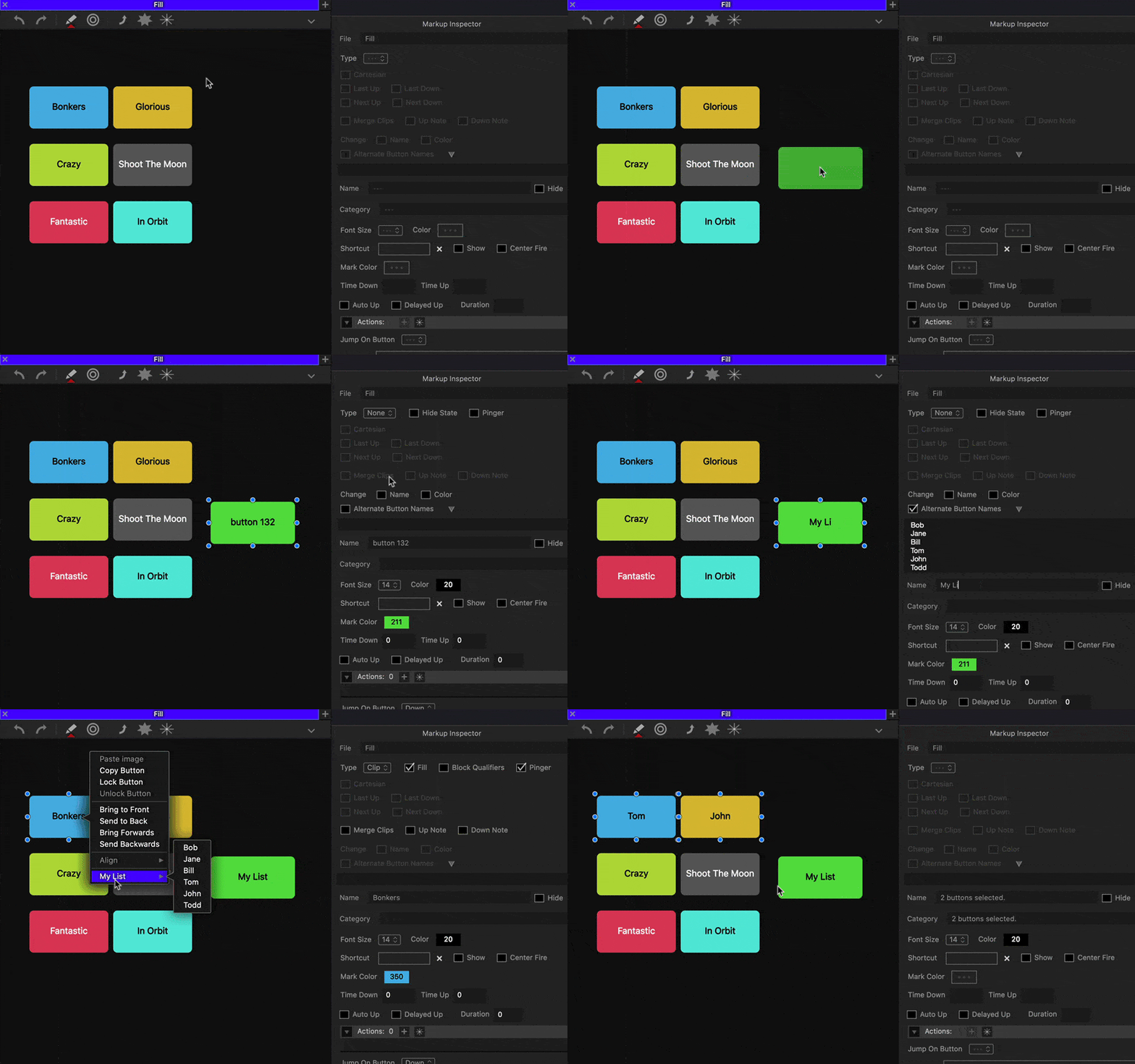
Here is how is works:
- Create a none button and name the button something like 'My List'
- Select the Alternate Button Names option for the none button
- Add several names to the input box, each on a separate line.
- Right click on another button and look for 'My List' menu item at the bottom.
- Select a name from the list, the button name will change!
You can create as many lists as you want. Each list will appear in the right click menu at the bottom. This feature is great for substituting in and out players. The first person to request this was Mike Harkness at LSU Basketball in the States, it was nearly 3 years ago! Thanks for being patient Mike!
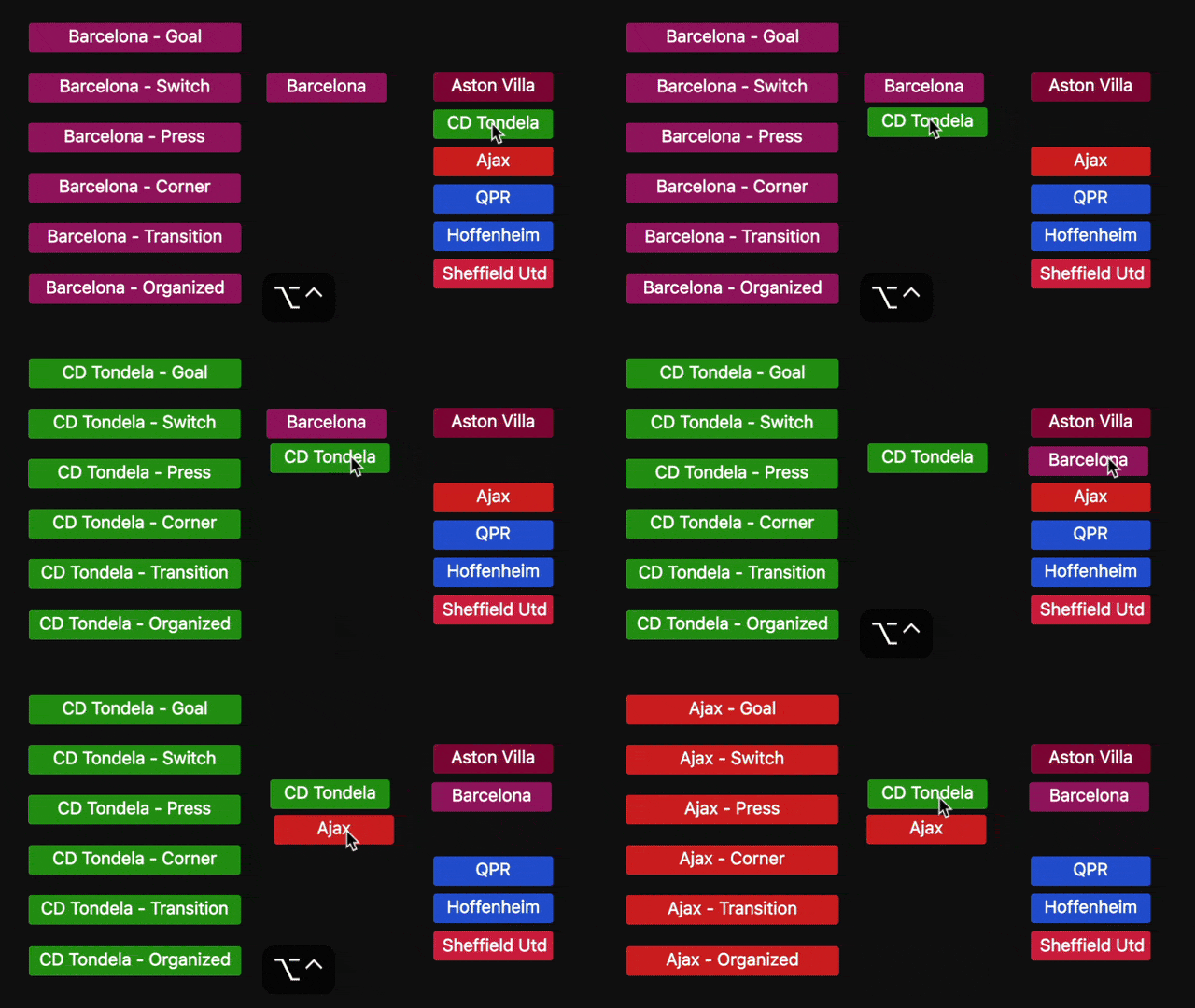 Change option for None buttons. Change is a search and replace
feature using two buttons; one 'Change' button is the searcher and the closest
'Change' button is the replacer. Use name or color or both options to search and
replace. When both options are selected, AND will be used in search, so
replacements must match both criteria: Name AND Color.
Change option for None buttons. Change is a search and replace
feature using two buttons; one 'Change' button is the searcher and the closest
'Change' button is the replacer. Use name or color or both options to search and
replace. When both options are selected, AND will be used in search, so
replacements must match both criteria: Name AND Color.
So, when you click on a Change button, it will search the markup for names that match its name, even a part of a name, then replace the found names with the closest Change button's name. Closest is measured by the center of the buttons.
Here is what you need to know:
- The option is only available for the None button type.
- You must have at least two None buttons with the change option selected.
- The replacement will occur when a change button is pushed down. Note that None buttons have state, so they will remain down until pushed up. Using AutoUp for the None button can help by pushing the button back up automatically, so you don't have to click the button twice.
- The search 'Change' button name or color has to match exactly. So, if you are trying to replace Name AND Color, both must match exactly.
- Buttons can be moved while in MarkUp mode by holding down Control Option. This may be helpful with this feature.
Undo support added for button name changes. This is pretty important to the Change feature as you can change a whole bunch of names that you did not intend to, so remember to press Command Z if you make a mistake using the Change feature.
The implementation of the Change feature was inspired by a request from John Sheahan, a good friend of Fulcrum in Japan.
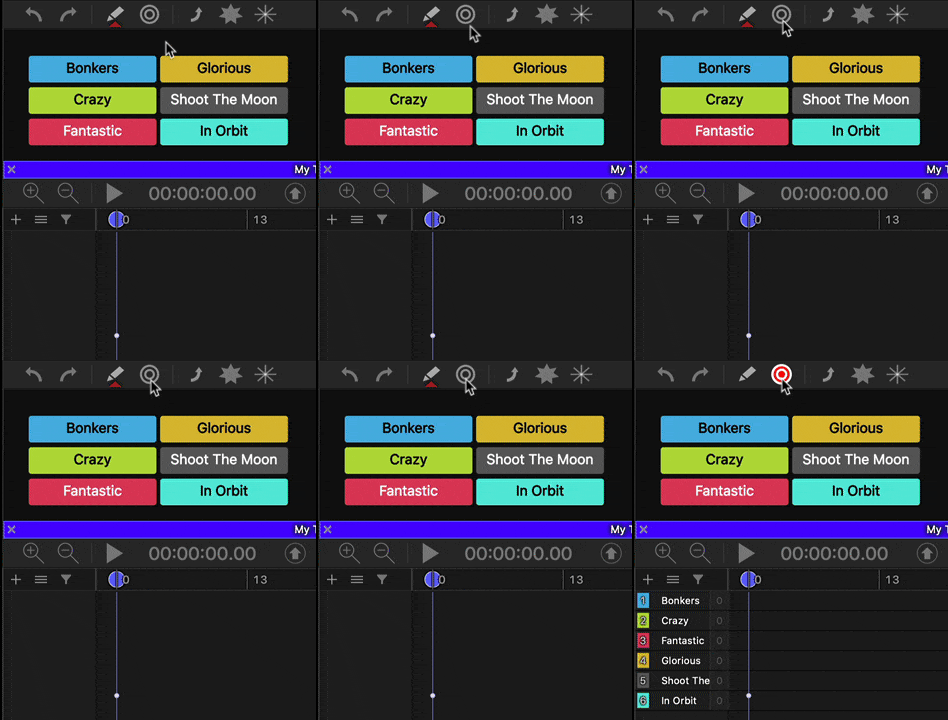 Fill option added to clip type buttons. Selecting this option
will fill the timeline with an empty row when MarkUp mode is engaged. A very
useful feature for adding a bunch of empty rows in the timeline using your MarkUp.
Fill option added to clip type buttons. Selecting this option
will fill the timeline with an empty row when MarkUp mode is engaged. A very
useful feature for adding a bunch of empty rows in the timeline using your MarkUp.
Block Qualifiers option added to clip type buttons. Selecting this option will block all qualifiers from being inserted into the clip.
Hide Name option added to buttons. Selecting this option will visually hide the button name of the button.
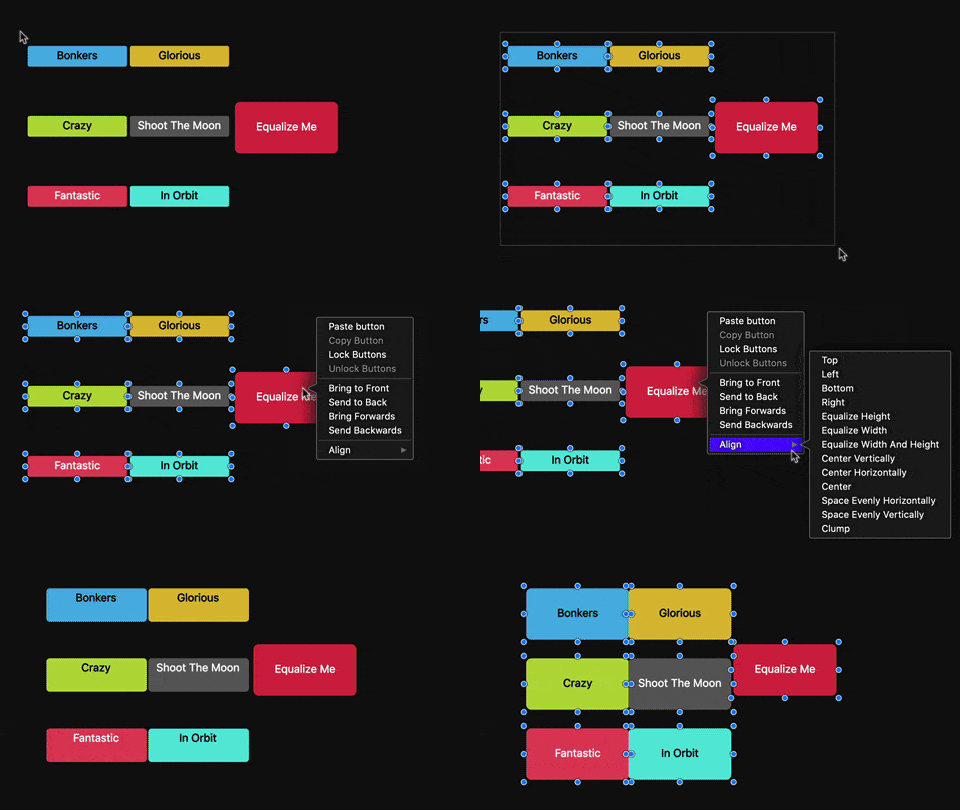 Equalize Width and Height added to the button align menu in the
MarkUp view. This feature will set the width and height for the selected buttons
based on the button that was clicked on to open the menu.
Equalize Width and Height added to the button align menu in the
MarkUp view. This feature will set the width and height for the selected buttons
based on the button that was clicked on to open the menu.
Escape Key Shortcut, pressing the Escape key on the keyboard during MarkUp mode while clip buttons are down, actively marking the timeline will remove the clips and their presence in any qualifier insertion queues.
Delayed Up option added to Clip Auto Up options. Selecting Delayed Up will delay the time that the auto up time will count down until the moment when the clip button is pushed up.
Up > Down & Down > Down button actions extend the auto up time.
Private action link support added to Last Down qualifer option.
Timeline Updates:
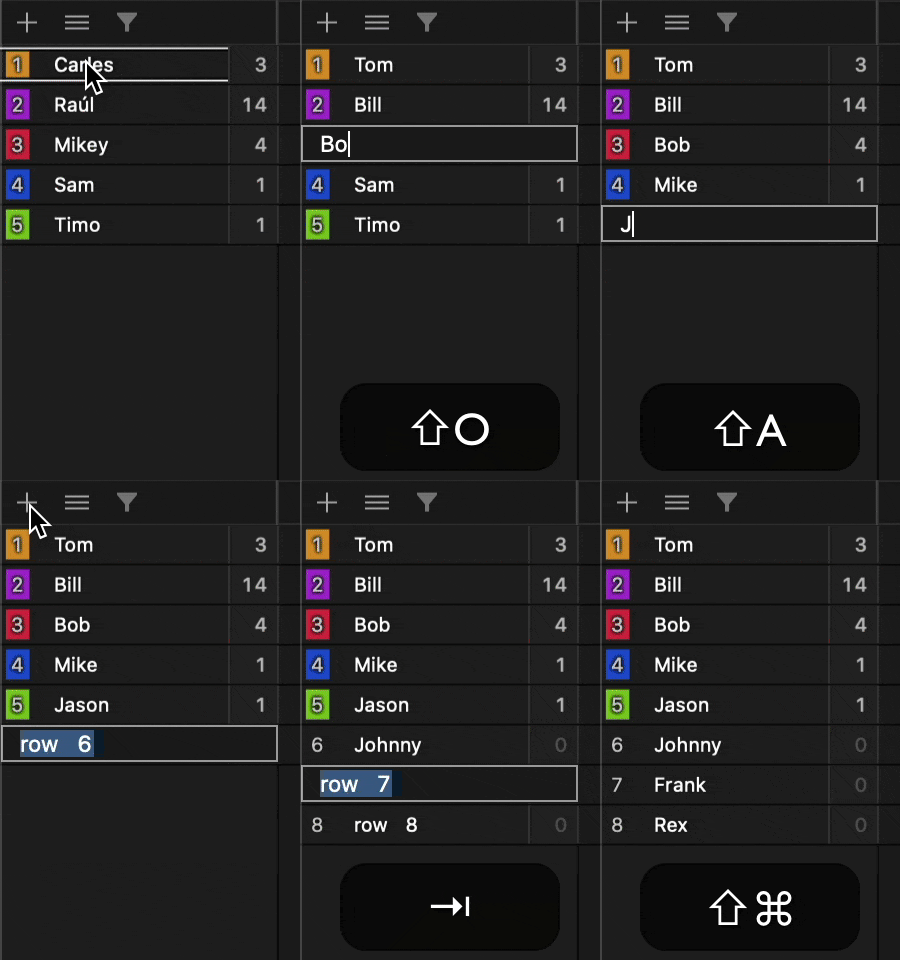 Inline row name editing support added to the timeline! This
feature works similiar to topic name editing in the composer. When a new row
is added using the Add Row button in the timeline or using the shortcut Control R,
the editor will be set to change the name of the row. When in editing mode,
you can press Tab or Shift Tab to move up and down the rows to quickly change
names. Press Return to stop editing or click away from the editor.
Inline row name editing support added to the timeline! This
feature works similiar to topic name editing in the composer. When a new row
is added using the Add Row button in the timeline or using the shortcut Control R,
the editor will be set to change the name of the row. When in editing mode,
you can press Tab or Shift Tab to move up and down the rows to quickly change
names. Press Return to stop editing or click away from the editor.
To edit an existing row name, select the row with one click, then do a long click down on the name, the text editing will commence when the click goes up.
Remove Qualifers from selected clips added to timeline and composer remove menus.
General Updates:
Filtered Out Clips are ignored when selecting all clips in the timeline and composer. So, now you can press Command A and select only the filtered in clips. In the timeline, the lasso tool only selects filter in clips.
Filter input box expands to show full filter pattern. Thanks to Mikey at Sheffield Utd for pointing this one out.
Remove menus in timeline and composer re-arranged and updated to show more details.
When Angles window is minimized in the Dock, clicking on the Angles app icon in the Dock will open the windows back up.